
Quickstart
This tour assumes you've installed Commando and wired up the shell integration. We'll go from an empty prompt to a fully assembled command in under a minute.
1. Summon the launcher
Press Ctrl+G at any prompt (or just run commando). You'll see a fuzzy
search list, ranked by frecency. Type to filter across cheats, project
commands, bookmarks, and history at once — each word you type is matched
independently, so you can mix a tag, title, description word, or command token
in any order. Then press Enter to put the command on your prompt:
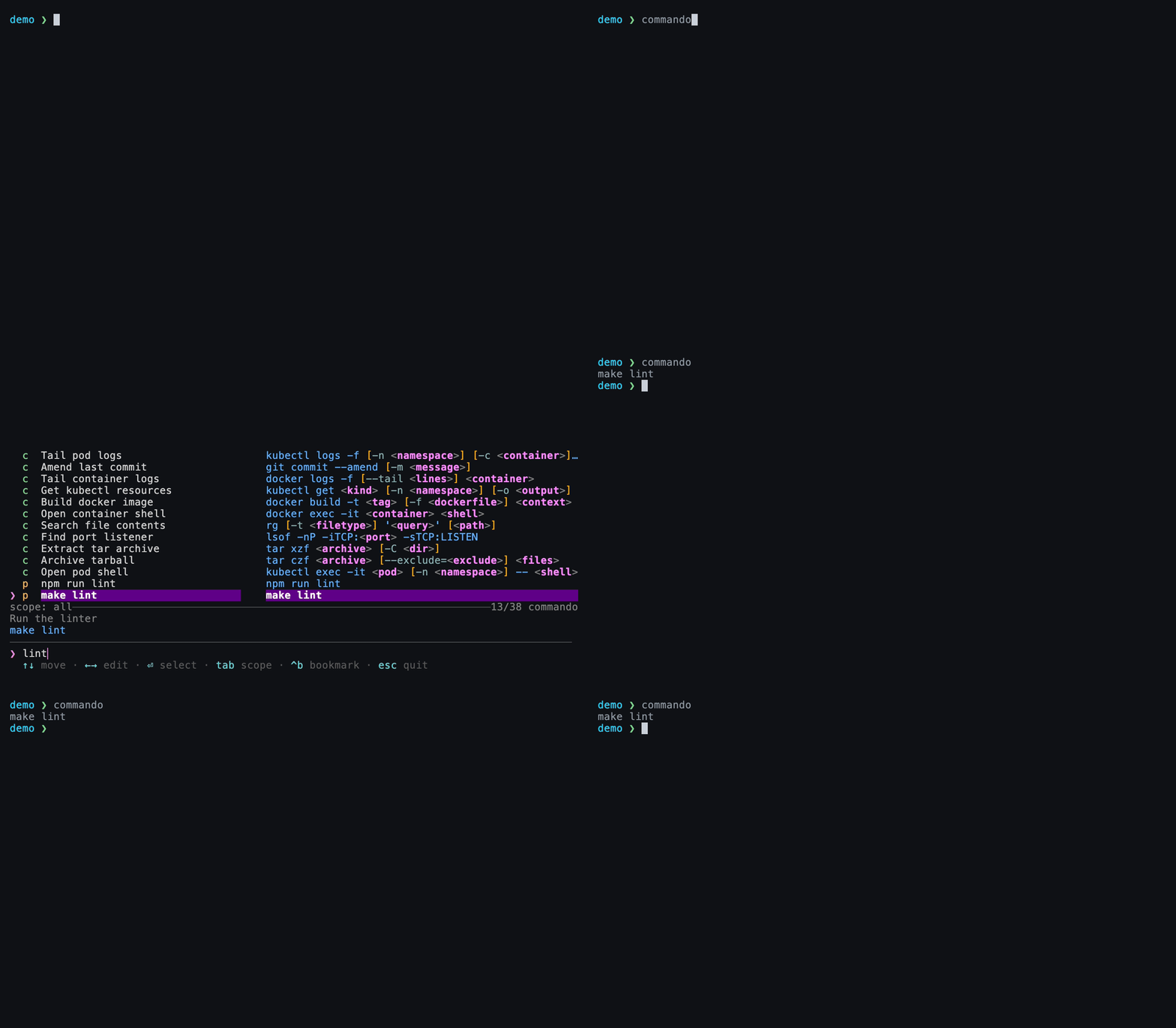
Searching “status”, selecting git status, and it lands on the prompt — nothing runs until you press Enter.
The list, annotated:
  p  docker compose up -d            docker compose up -d
  p  npm build                       npm run build
❯ c  Search git log                  git log [--author=<author>] [-n <count>] -- <file>
scope: all────────────────────────────────────────────3/42 commando
Search git log by author for a file.
git log [--author=<author>] [-n <count>] -- <file>
────────────────────────────────────────────────────────
❯ log auth▊
↑↓ move  ←→ edit  ⏎ select  tab scope  ^b bookmark  esc quit
Want just one source? Lead the query with a : prefix — :c for cheats, :p
for project commands, :h for history, :b for bookmarks — or press Tab
to cycle through the scopes. See
The TUI for the details.
2. Fill in the variables
Select an entry with Enter. If it has variables, Commando opens a fill-in form with a command preview that updates as you type:
╭────────────────────────────────────────────────────────╮
│ Search git log                                         │
│ command:                                               │
│   git log -n 20 -- <file>                              │
│                                                        │
│ params:                                                │
│   author (optional) = (skipped)                        │
│   count (optional) = 20                                │
│ ❯ file (required, multi) = ‹unset›                     │
╰────────────────────────────────────────────────────────╯
    helper.go
❯ ◯ main.go
❯ file (multi) = ▊
↑↓ candidates  space toggle  ⏎ run  ^p/^n params  ^d clear
Working the form:
- Type a value, or use Up/Down to pick from candidates.
- Optional fields show
[skip]— press Ctrl+S to skip, and the whole[...]fragment vanishes from the command (no dangling flags). - Multi-select fields let you toggle several values with Space.
- Move within text with Left/Right; move between fields with Ctrl+P/Ctrl+N. Tab jumps to the next required field.
3. Review and run
On the last field, Enter finishes assembly. The command is placed on your shell prompt:
Nothing has run yet. Review, edit if you like, then press Enter yourself.
This is the core of Commando's design — the shell owns execution, so your cd,
environment variables, and aliases all keep working.
Run it directly instead
If you want Commando to execute the command for you (handy in scripts):
Try these next
-
Author a cheat
Commando parses your template, discovers the variables, and prompts for each one's options.
-
Bookmark a command
Press Ctrl+B on any list entry (parameterized entries are resolved before saving), or:
-
Search your history
Read live from your shell's history file.